Secure Document Analyzer
Step-by-step guide for team members using Secure Document Analyzer on EZ4YouTech.com.
Upload, extract, and analyze documents with your connected AI providers.
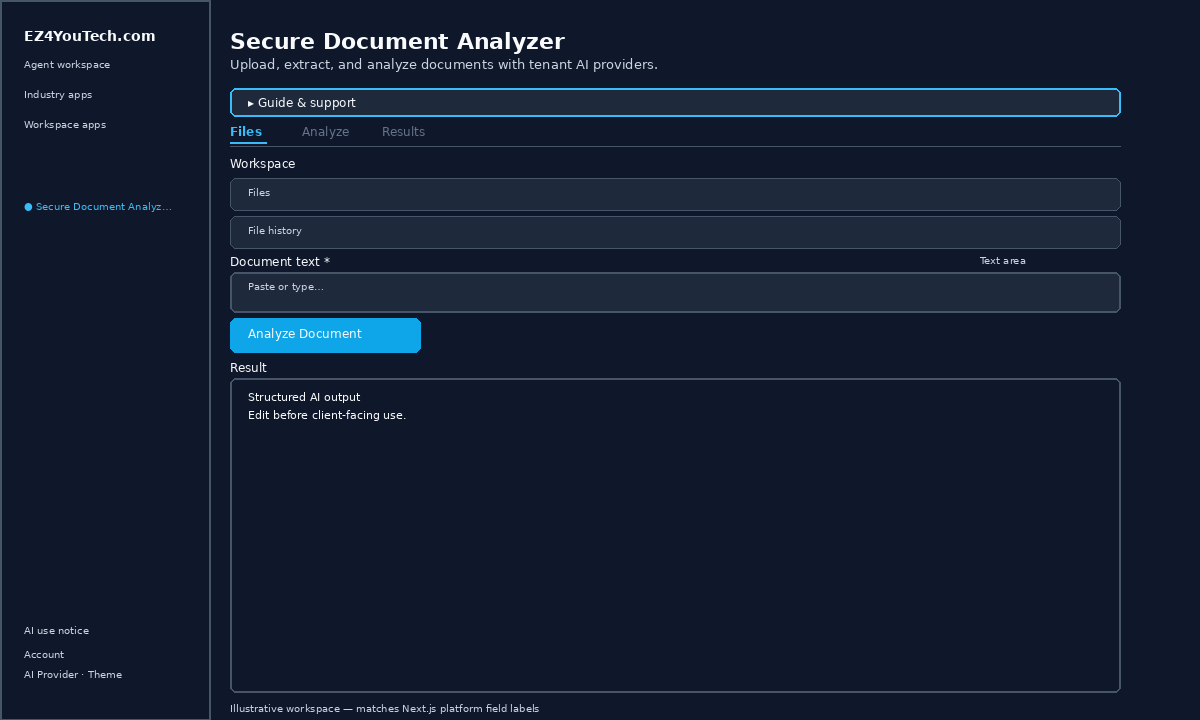
Workspace fields
These labels match the live EZ4YouTech.com workspace (sidebar provider + main panel):
- Document text (required), textarea field in the workspace
Primary action button: Analyze Document
Workspace overview
Before you start
- Sign in as a team member on your company workspace (admins connect AI accounts separately).
- Confirm your company admin has connected at least one supported AI provider: leading AI services such as OpenAI, Together, Groq, and xAI (Grok); see the full list and pricing comparison in admin BYOS setup.
- Verify your plan includes Basic apps: locked apps show which plan unlocks them.
Step-by-step
- Open the app: In the workspace sidebar, select Secure Document Analyzer under Everyday common utility tools.
- Choose your AI provider: In the sidebar, pick the AI provider your company admin connected (your admin sets try-order in BYOS setup).
- Review Guide & support: Expand Guide & support at the top for what the app does, how-to steps, tips, and feedback.
- Acknowledge AI use notice: On first workspace entry each browser session, read the AI use notice and click I understand: continue to workspace.
- Files tab: add a document: Open the Files tab. Drag and drop or click Choose file (PDF, DOCX, TXT, MD). Optionally enable Run analysis automatically after upload.
- Files tab: use history: Under File history, pick a saved file and click Load file. Under Analysis history, select a past run and click View analysis.
- Analyze tab: review and run: Open Analyze. Review Document text, choose Analysis type(s), add optional focus, then click Analyze Document.
- Results tab: review output: Open Results to read the analysis, download or copy, add revision notes, then Regenerate analysis or New document.
- Review before client use: Confirm facts, dates, and compliance language. Do not paste full SSN or card numbers.
Example inputs
Paste similar data in the workspace: use only data you are allowed to process. Field names match the live product.
Document text
COMMERCIAL LEASE: Tenant: Riverfront LLC. Term: 36 months from 7/1/2026. Base rent stated in Schedule A. CAM reconciliation annually. Assignment requires landlord consent.Use the Files tab or paste extracted text on Analyze before you run.
Try these scenarios
Adapt these prompts to your client: do not paste payment card numbers, SSNs, or full IDs.
- Summarize key obligations and dates for internal review.
- Flag ambiguous clauses before sending to a client.
- Extract party names and defined terms only.
Expected result
Shape of the AI output in the Result panel: review before client use.
Example output (analysis)
- Document type and parties identified from your text
- Key clauses / dates with citations to sections you pasted
- Risk flags and recommended human review items
Tips
- Keep inputs specific: include dates, names, and constraints for better drafts.
- Do not paste full payment card or government ID numbers: use business-appropriate excerpts only.
- If the app is locked, ask your admin to upgrade your plan or confirm AI account setup.
← Back to everyday common utility tool tutorials · Getting started · FAQ