AI Customer Support Agent
Step-by-step guide for team members using AI Customer Support Agent on EZ4YouTech.com.
Draft support replies and triage customer messages.
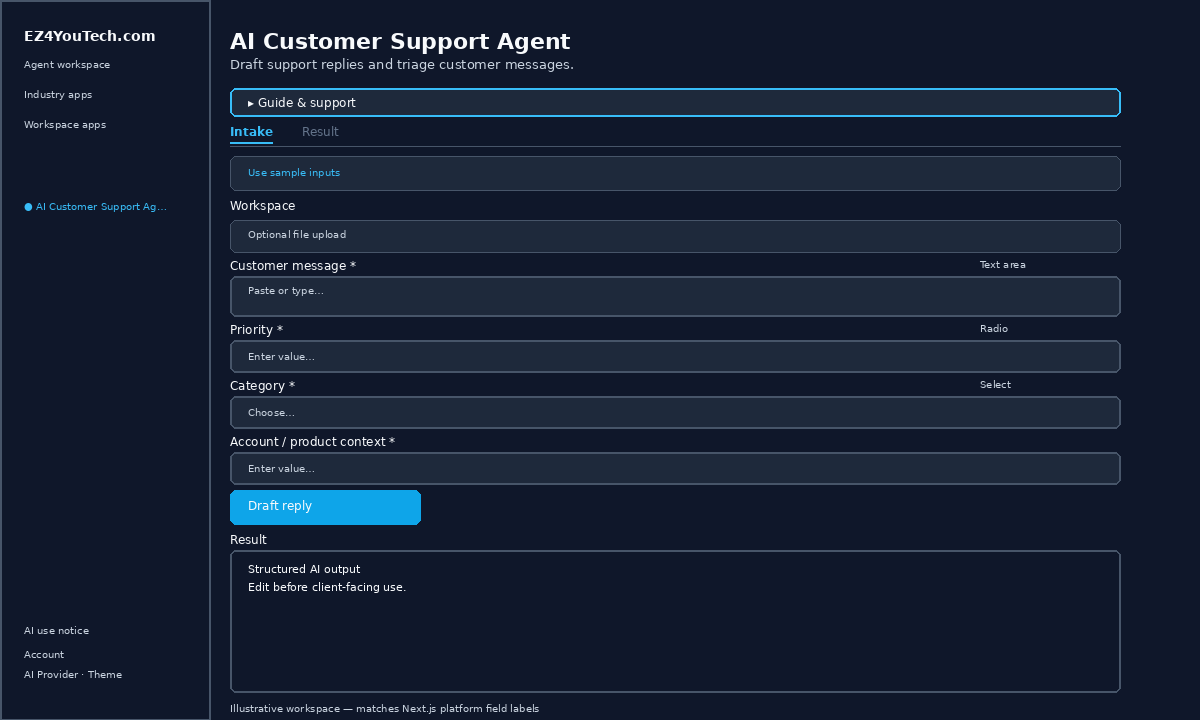
Workspace fields
These labels match the live EZ4YouTech.com workspace (sidebar provider + main panel):
- Customer message (required), textarea field in the workspace
- Priority (required), radio field in the workspace
- Category (optional), select field in the workspace
- Account / product context (optional), text field in the workspace
Primary action button: Draft reply
Workspace overview
Before you start
- Sign in as a team member on your company workspace (admins connect AI accounts separately).
- Confirm your company admin has connected at least one supported AI provider: leading AI services such as OpenAI, Together, Groq, and xAI (Grok); see the full list and pricing comparison in admin BYOS setup.
- Verify your plan includes Standard apps: locked apps show which plan unlocks them.
Step-by-step
- Open the app: In the workspace sidebar, select AI Customer Support Agent under Everyday common utility tools.
- Choose your AI provider: In the sidebar, pick the AI provider your company admin connected (your admin sets try-order in BYOS setup).
- Review Guide & support: Expand Guide & support at the top for what the app does, how-to steps, tips, and feedback.
- Acknowledge AI use notice: On first workspace entry each browser session, read the AI use notice and click I understand: continue to workspace.
- Use sample inputs (optional): Click Use sample inputs above the form to load demo values from the tutorial, then edit before you run.
- Optional file upload: If your workspace shows Optional file upload, expand it for PDF or DOCX. Otherwise paste directly on the Intake tab.
- Complete additional inputs: In Workspace, fill Priority, Category, Account / product context before you run.
- Enter Customer message: On Intake, add content to Customer message (paste text or load from optional upload).
- Run the app: On the Intake tab, click Draft reply. Review output on the Result tab and download if needed.
- Review before client use: Confirm facts, dates, and compliance language. Do not paste full SSN or card numbers.
Example inputs
Paste similar data in the workspace: use only data you are allowed to process. Field names match the live product.
Customer message
I was charged twice on 5/01 for the same subscription. Please refund the duplicate.Paste the inbound ticket, chat, or email verbatim (redact card numbers).
Priority
MediumTicket priority for routing.
Category
BillingSupport category for reporting.
Account / product context
Plan: Pro monthly · SLA: 24h response · No prior tickets this quarterAccount, product, SLA, or approved FAQ snippets the reply should respect.
Try these scenarios
Adapt these prompts to your client: do not paste payment card numbers, SSNs, or full IDs.
- Draft reply for duplicate billing charge with refund steps.
- User cannot log in after password reset: troubleshooting tone.
- Escalation template when SLA is next-day and issue is P1.
Expected result
Shape of the AI output in the Result panel: review before client use.
Example output (support)
- Intent: billing · access · product how-to
- Draft reply matching your SLA and context
- Escalation note if sensitive or high-risk
Tips
- Keep inputs specific: include dates, names, and constraints for better drafts.
- Do not paste full payment card or government ID numbers: use business-appropriate excerpts only.
- If the app is locked, ask your admin to upgrade your plan or confirm AI account setup.
← Back to everyday common utility tool tutorials · Getting started · FAQ